
SteamVR Virtual HMD Troubleshooting
If SteamVR shows Headset Not Detected, a game does not detect the VisApex Virtual HMD, or game like Assetto Corsa EVO starts in VR mode and then closes again after only a few seconds, SteamVR may not have loaded the VisApex OpenVR driver correctly.
This can happen if:
- SteamVR was already running before VisApex registered the OpenVR driver.
- The VisApex OpenVR driver was not registered successfully.
- SteamVR disabled the VisApex driver after a previous unsuccessful startup.
Follow the steps below to check the driver and restore it if necessary.
1. Close SteamVR Completely
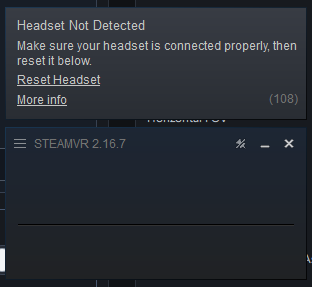
Before starting, make sure SteamVR is completely closed.
The VisApex OpenVR driver should be registered before SteamVR starts.
2. Enable Verbose Diagnostics
In VisApex, go to:
Options → System → Verbose Diagnostics
Enable Verbose Diagnostics.
This provides additional information in the VisApex log if further troubleshooting is required.
3. Start Tracking with SteamVR Output
Make sure SteamVR output is enabled in VisApex, then click Start Tracking.
VisApex registers its OpenVR driver when Tracking is started with SteamVR output enabled.
4. Start SteamVR
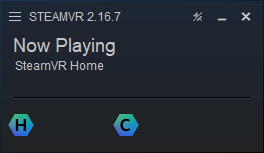
Start SteamVR manually.
If everything is working correctly, SteamVR should detect the VisApex Virtual HMD instead of displaying Headset Not Detected.
5. Check the VisApex SteamVR Add-On
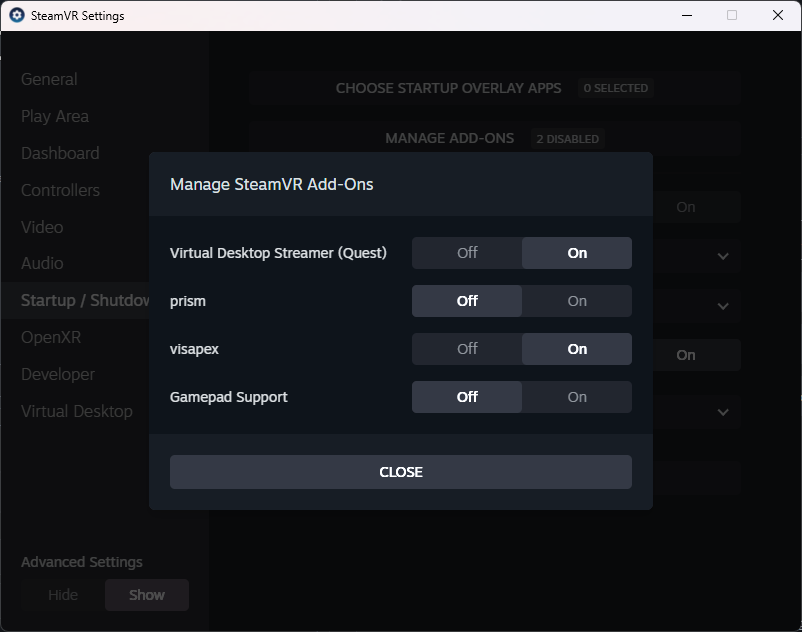
In SteamVR, go to:
Settings → Startup / Shutdown → Manage SteamVR Add-Ons
Look for visapex in the list and make sure it is switched On.
Screenshot: Insert the SteamVR Manage SteamVR Add-Ons screenshot here showing
visapexenabled.
If visapex is listed but switched Off, turn it On, close SteamVR completely, and start SteamVR again.
6. If VisApex Is Not Listed
If visapex does not appear under Manage SteamVR Add-Ons:
- Close SteamVR completely.
- Return to VisApex.
- Click Register with SteamVR.
- Start Tracking with SteamVR output enabled.
- Start SteamVR again.
- Return to Settings → Startup / Shutdown → Manage SteamVR Add-Ons.
- Confirm that visapex is now listed and switched On.
If you see an error message when clicking Register with SteamVR, take a screenshot of the error if possible.
7. Test the Game Again
Once SteamVR detects the VisApex Virtual HMD correctly, launch your game again.
Assetto Corsa EVO Starts and Closes After a Few Seconds
If Assetto Corsa EVO starts in VR mode but closes again after only a few seconds, check SteamVR before troubleshooting the game itself.
If SteamVR shows Headset Not Detected, or the visapex add-on is missing or disabled, follow the steps above first.
ACE may terminate its VR startup when a usable headset is not available through the active VR runtime.
Once SteamVR successfully detects the VisApex Virtual HMD, try starting Assetto Corsa EVO again.
For game-specific configuration and launch instructions, see the VisApex Compatible Games page.
Still Not Working?
If SteamVR still does not detect the VisApex Virtual HMD, reproduce the problem once more with Verbose Diagnostics enabled.
Please send us:
vrserver.txtvisapex.logfrom:
Documents\VisApex\logs
If you see any error message or error dialog while registering the driver, starting Tracking, starting SteamVR, or launching the game, please also send us a screenshot of the error if possible.
These logs and screenshots can help us determine whether the problem is with OpenVR driver registration, SteamVR loading the driver, or another part of the Virtual HMD startup process.
Quick Checklist
- SteamVR is completely closed before starting Tracking.
- SteamVR output is enabled in VisApex.
- Tracking is started before SteamVR.
visapexappears under Manage SteamVR Add-Ons.- The
visapexadd-on is switched On. - SteamVR detects the VisApex Virtual HMD without showing Headset Not Detected.
- If
visapexis missing, use Register with SteamVR and restart SteamVR. - If Assetto Corsa EVO starts and closes again after a few seconds, first confirm that SteamVR detects the VisApex Virtual HMD correctly.