
PS3 Eye Driver & Head Tracking Setup Guide
The PlayStation 3 Eye (PS3 Eye) camera can be used on Windows as a high-frame-rate camera for head tracking with VisApex.
VisApex maintains an open-source 64-bit PS3 Eye DirectShow filter with support for 320×240 at 120 fps, providing a low-cost option for high-frame-rate head tracking.
PS3EyeDirectShow-120fps is not bundled with VisApex because it is separately licensed open-source software under GPL-3.0. Download and install it separately using the instructions below.
Download PS3EyeDirectShow-120fps from GitHub
How the PS3 Eye Works on Windows
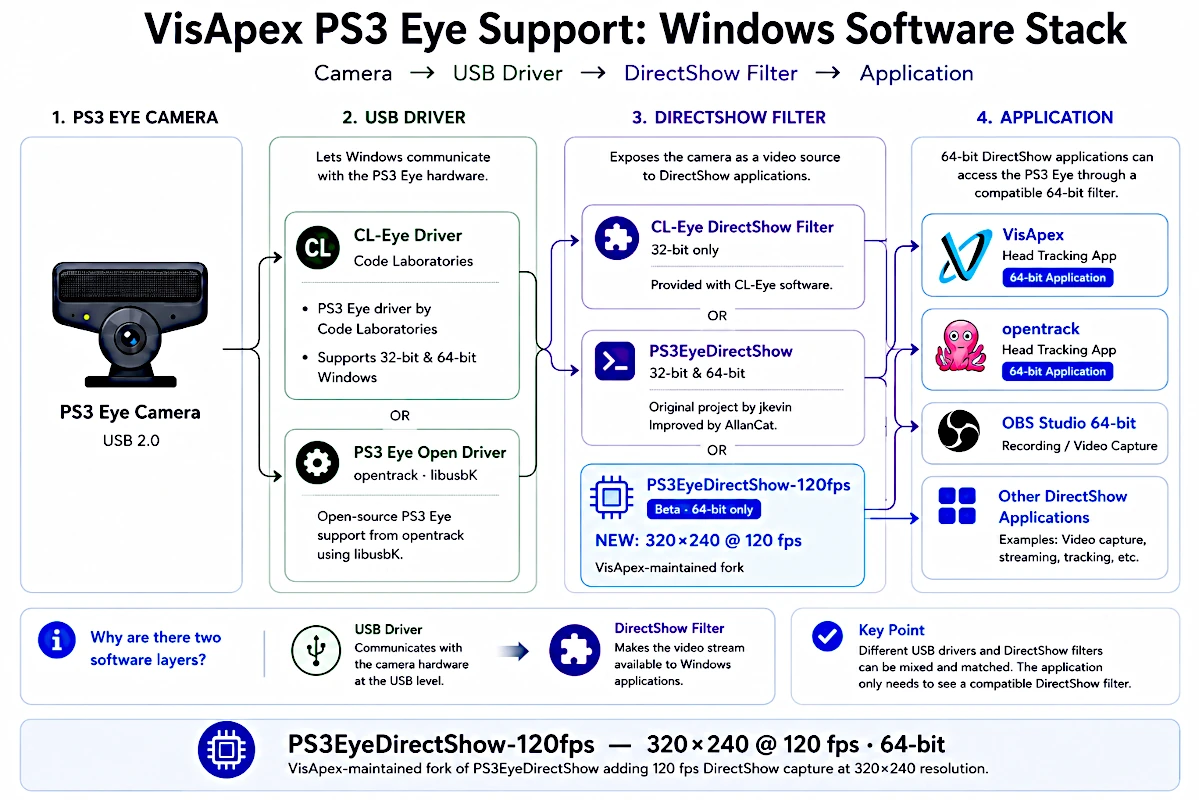
The PS3 Eye requires two software layers before applications such as VisApex can access it:
PS3 Eye Camera → USB Driver → DirectShow Filter → VisApex
The USB driver allows Windows to communicate with the PS3 Eye camera hardware.
The DirectShow filter makes the camera video available to compatible Windows applications.
PS3EyeDirectShow-120fps provides the DirectShow filter. A compatible USB driver must also be installed.
Infographic: Place the PS3 Eye Windows software stack infographic here.
Image filename:
ps3-eye-windows-driver-directshow-120fps-visapex.webpAlt text:
PS3 Eye Windows driver and DirectShow setup for 120 fps head tracking with VisApex
Already Using the CL-Eye Driver?
If your PS3 Eye already works with the Code Laboratories CL-Eye driver, you can keep your existing driver.
There is no need to uninstall or reinstall CL-Eye. Simply install the PS3EyeDirectShow-120fps filter using the instructions below.
Your setup will be:
PS3 Eye → CL-Eye USB Driver → PS3EyeDirectShow-120fps → VisApex
Install a PS3 Eye USB Driver on Windows
If your PS3 Eye does not already have a working USB driver, install one before installing the DirectShow filter.
You have two options:
Code Laboratories CL-Eye Driver
The Code Laboratories CL-Eye USB driver can be used with PS3EyeDirectShow-120fps.
PS3 Eye Open Driver
Alternatively, you can use the open-source PS3 Eye setup documented by opentrack.
PS3 Eye Open Driver Instructions — opentrack
Once the camera has a working USB driver, continue with the DirectShow filter installation below.
Install PS3EyeDirectShow-120fps
- Download the latest portable x64 ZIP from the PS3EyeDirectShow-120fps Releases page.
- Extract all files from the ZIP to a permanent folder.
- Right-click Register-PS3EyeDirectShow.bat and select Run as administrator.
- Accept the Windows User Account Control prompt if it appears.
- A successful RegSvr32 message confirms that the DirectShow filter has been registered.
Important
Do not move, rename, or delete the extracted folder after registration.
Windows records the current location of PS3EyeSourceFilter.dll. Moving or deleting the file will break the registered filter.
If you need to move the installation later, unregister the filter first and register it again from the new location.
Set Up the PS3 Eye in VisApex
After installing the DirectShow filter:
- Start VisApex.
- Open the camera selection.
- Select PS3 Eye Universal.
- Select your preferred camera resolution and frame rate.
For high-frame-rate head tracking, PS3EyeDirectShow-120fps supports:
320×240 @ 120 fps
At 120 fps, each camera frame interval is approximately 8.3 ms, helping reduce the camera’s contribution to overall tracking latency.
OBS Studio and Other 64-bit Applications
The current PS3EyeDirectShow-120fps beta is 64-bit only.
In addition to VisApex, the filter can be used by compatible 64-bit DirectShow applications, including OBS Studio 64-bit.
This can also be useful for checking that the PS3 Eye and DirectShow filter are working correctly.
Update PS3EyeDirectShow-120fps
To update to a newer version:
- Close VisApex and any other application using the PS3 Eye.
- Run Unregister-PS3EyeDirectShow.bat as administrator from the existing installation folder.
- Extract the new package to a permanent folder.
- Run Register-PS3EyeDirectShow.bat as administrator from the new folder.
Uninstall PS3EyeDirectShow-120fps
To remove the DirectShow filter:
- Close all applications using the PS3 Eye.
- Run Unregister-PS3EyeDirectShow.bat as administrator.
- Wait for the successful RegSvr32 message.
- You can then delete the installation folder.
This removes the DirectShow filter only. It does not uninstall the underlying CL-Eye, libusbK, or other USB driver.
About PS3EyeDirectShow-120fps
PS3EyeDirectShow-120fps is a VisApex-maintained fork of the open-source PS3EyeDirectShow project.
The VisApex-maintained version adds 320×240 @ 120 fps DirectShow capture support while preserving the original project’s history, attribution, and open-source license.
The project is released under GPL-3.0-only.
Copyright remains with the respective original authors and contributors.
View PS3EyeDirectShow-120fps source code, releases, license and credits on GitHub