
Assetto Corsa Rally – Head Tracking with SteamVR+UEVR Setup Guide
Assetto Corsa Rally does not currently provide native VR support. However, it can be used with UEVR and the VisApex SteamVR Virtual HMD (Experimental) to provide webcam-based head tracking.
This guide covers the VisApex configuration and the additional UEVR setup required for Assetto Corsa Rally.
Note: SteamVR Virtual HMD support in VisApex is experimental. UEVR is a third-party project and is not developed or maintained by VisApex.
1. Install SteamVR
Install SteamVR through Steam if it is not already installed.
A physical VR headset is not required when using the VisApex Virtual HMD.
2. Download and Install UEVR
Assetto Corsa Rally requires UEVR (Universal Unreal Engine VR Mod) to provide VR support.
Download the latest stable version of UEVR from its official GitHub repository:
Download UEVR from the official GitHub releases page
Extract the downloaded archive to a folder of your choice.
UEVR’s official instructions currently describe the basic process as starting UEVRInjector.exe, starting the target game, selecting its process, choosing the desired OpenVR/OpenXR runtime, and injecting UEVR into the game.
Assetto Corsa Rally UEVR Setup
Assetto Corsa Rally requires UEVR to provide VR support. For a walkthrough of the required UEVR configuration and launch procedure, see this guide from OverTake:
OverTake — AC Rally Already in VR?! How to Get It Working With UEVR
The article also includes a video walkthrough demonstrating the setup:
The UEVR portion begins at approximately 1:50, with the Assetto Corsa Rally/UEVR launch procedure beginning around 2:17.
This is a third-party video provided as a useful reference. OverTake is not affiliated with VisApex and their inclusion here does not imply endorsement of VisApex.
3. Create an Assetto Corsa Rally Profile
In VisApex, go to:
Options → Profiles
Create a new profile for Assetto Corsa Rally.
This step is optional, but recommended if you use VisApex with multiple games. It allows you to keep the game’s SteamVR and tracking settings separate from your other profiles.
4. Select SteamVR Virtual HMD
Go to:
Tracking → Output Mode
Select:
SteamVR Virtual HMD (Experimental)
The SteamVR Virtual HMD settings will appear below.
Pacing Rate
Set Pacing Rate to match the frame rate you intend to use with Assetto Corsa Rally.
For example, when playing at 60 FPS, select:
60 Hz
Matching the pacing rate helps provide smooth and consistent head tracking.
Horizontal FOV
Leave Horizontal FOV at its default value.
This setting does not affect the normal Assetto Corsa Rally desktop/spectator output that you will use for gameplay.
Display Aspect Ratio
Leave Display aspect ratio at its default setting.
Mirror Window
Disable:
Mirror window
Unlike the special Assetto Corsa EVO configuration, you do not play Assetto Corsa Rally through the VisApex Virtual Display.
Use Assetto Corsa Rally’s normal desktop/spectator window instead.
Reduce Render Size to Match Aspect Ratio
Disable:
Reduce Render Size to Match Aspect Ratio (Experimental)
This option is not required for the normal Assetto Corsa Rally setup.
5. Start VisApex Head Tracking
Start head tracking in VisApex.
Center the tracking view if necessary. Keep your head still and facing your normal forward position while centering.
We recommend starting VisApex tracking before starting the UEVR VR session, so the SteamVR Virtual HMD is already available.
6. Start Assetto Corsa Rally and UEVR
Start Assetto Corsa Rally and follow the UEVR procedure described in the guide above to inject UEVR into the game.
Once UEVR is active, SteamVR should receive the virtual HMD pose from VisApex.
Continue playing through Assetto Corsa Rally’s normal desktop/spectator window.
7. Center the View
UEVR/game VR centering is independent from the VisApex tracking center.
If both need to be recentered:
- Keep your head still and facing forward.
- Center VisApex first.
- Recenter the VR/game view afterward.
This establishes the VisApex neutral position first and then aligns the game’s VR view to it.
8. Optional: Force V-Sync if Needed
If Assetto Corsa Rally does not honor its V-Sync setting and you experience tearing or inconsistent frame pacing in the desktop window, you can force V-Sync through your graphics driver.
For NVIDIA, open:
NVIDIA Control Panel → Manage 3D settings → Program Settings
Create or select a profile for Assetto Corsa Rally and set:
Vertical sync → On
We recommend changing this in the game-specific profile, rather than enabling V-Sync globally.
AMD and Intel graphics drivers provide equivalent per-application synchronization settings. The exact option name and location can vary between driver versions.
Subsequent Sessions
After the initial setup, you normally only need to:
- Start VisApex and select your Assetto Corsa Rally profile.
- Start VisApex head tracking.
- Start Assetto Corsa Rally.
- Start UEVR and inject it into Assetto Corsa Rally.
- Recenter the view if necessary.
- Play through Assetto Corsa Rally’s normal desktop/spectator window.
Your VisApex SteamVR Virtual HMD settings do not need to be configured again unless you want to change them.
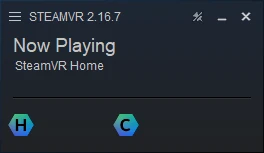
Important!!!
Close SteamVR App after you finish with SteamVR Virtual HMD. It’s cleaner to have it restart with the game.