
Assetto Corsa EVO — Head Tracking with SteamVR Setup Guide
Starting with Assetto Corsa EVO 0.9.1, ACE natively supports TrackIR-compatible head tracking. For most users, we now recommend using VisApex’s FreeTrack 2.0 Enhanced output instead.
For the simpler native setup, see the Generic FreeTrack Setup Guide.
Using SteamVR Instead
VisApex can also provide head tracking in Assetto Corsa EVO through its experimental SteamVR Virtual HMD output. This allows you to use VisApex webcam head tracking with ACE without a VR headset.
The SteamVR method remains supported and provides a different head tracking and camera experience from the native TrackIR-compatible method. Users who prefer the SteamVR behavior, or simply want to experiment with an alternative way of playing ACE, can continue with this guide.
Recommended: If you are setting up VisApex with Assetto Corsa EVO for the first time, we recommend trying the native head tracking method first. If you want to experiment with something different, the SteamVR method below is still available.
1. Install SteamVR
Install SteamVR through Steam if it is not already installed.
You do not need a physical VR headset. VisApex provides a virtual HMD for head tracking and display output.
2. Create an Assetto Corsa EVO Profile
In VisApex, go to:
Options → Profiles
Create a new profile for Assetto Corsa EVO.
This step is optional, but recommended if you use VisApex with multiple games, as the SteamVR settings can then be kept specifically for ACE.
3. Select SteamVR Virtual HMD
Go to:
Tracking → Output Mode
Select:
SteamVR Virtual HMD (Experimental)
The SteamVR Virtual HMD settings will appear below.
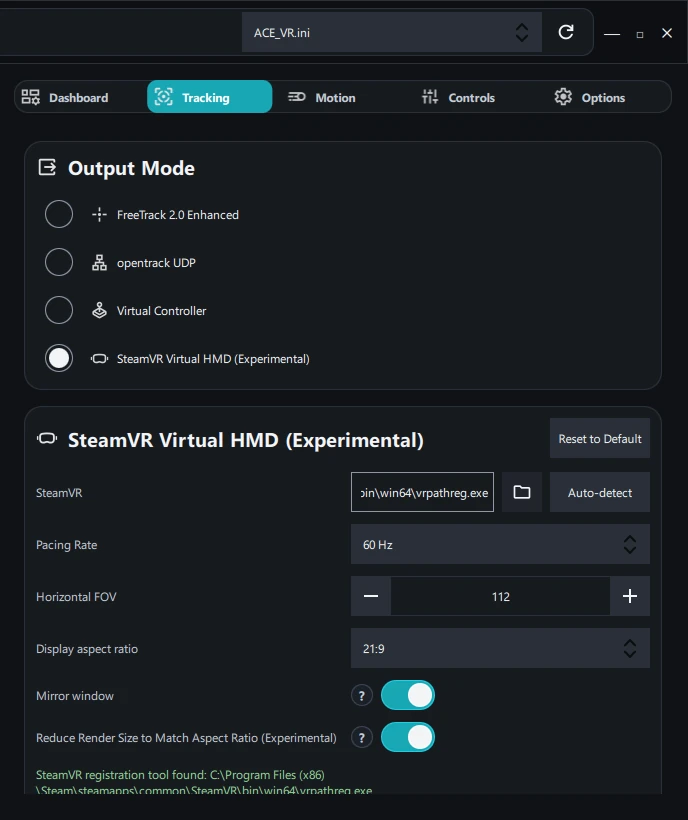
Pacing Rate
Set Pacing Rate to match the refresh rate configured in Assetto Corsa EVO.
For example, if ACE is configured for 60 Hz, select 60 Hz.
Horizontal FOV
Set Horizontal FOV to your preference.
As a starting point, adjust it proportionally to the Display aspect ratio you select. Wider aspect ratios will normally benefit from a wider horizontal FOV.
You can fine-tune this later to get the field of view that feels most natural on your display.
Display aspect ratio
Select an aspect ratio appropriate for your display and preferred view.
You can also use a wider aspect ratio on a 16:9 monitor to create a letterboxed ultrawide view. This can provide a wider field of view and, when used with Reduce Render Size to Match Aspect Ratio, may slightly improve performance by reducing the number of pixels ACE needs to render.
Mirror window
For Assetto Corsa EVO, enable:
Mirror window
VisApex will create a VisApex Virtual Display window. This is the window you will play the game through.
Reduce Render Size to Match Aspect Ratio (Experimental)
If you’re using a letterboxed wide aspect ratio, enable:
Reduce Render Size to Match Aspect Ratio (Experimental)
This reduces the rendering resolution to match the selected aspect ratio rather than rendering pixels that will not be visible.
If it does not work correctly on your system, disable it.
You should also normally leave it disabled when using your display’s normal aspect ratio.
4. Start VisApex Tracking
Start head tracking in VisApex.
Center the tracking view if necessary. Keep your head still and facing your normal forward position while centering.
5. Start Assetto Corsa EVO
Launch Assetto Corsa EVO in:
OpenXR mode
If the VisApex Virtual Display does not automatically receive focus, switch to it manually.
Wait for Assetto Corsa EVO to finish starting.
6. Configure ACE for VR
There are two important things to configure the first time you use ACE this way.
Enable Spectator View
Mouse and keyboard interaction with the ACE user interface is not available through the VisApex Virtual Display window.
We therefore recommend enabling:
ACE Settings → Video → VR → Spectator View
When you need to make extensive settings changes with the mouse or keyboard, switch to the ACE Spectator View window.
When you’re finished, switch back to VisApex Virtual Display and use your controller to navigate the ACE menus normally.
Map Reset View
If you have never used ACE in VR before, map Reset View to a convenient controller button.
ACE maintains its own VR center independently of VisApex’s tracking center.
If your in-game view needs recentering, use ACE’s Reset View command.
If both centers need adjustment:
- Center VisApex first while keeping your head still and facing forward.
- Then use Reset View in Assetto Corsa EVO.
You’re Ready to Drive
Once the initial setup is complete, you do not need to repeat these steps every time.
For future sessions:
- Start VisApex and start head tracking.
- Launch Assetto Corsa EVO in OpenXR mode.
- Switch to the VisApex Virtual Display window.
- Use your controller to navigate the ACE menus and start driving.
Your Assetto Corsa EVO and VisApex settings will remain available for subsequent sessions.
Important!!!
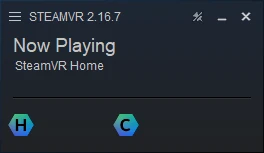
Close SteamVR App after you finish with SteamVR Virtual HMD. It’s cleaner to have it restart with the game.